
Umbraco 17
Filling your Backoffice Extension with logic
In the previous blog post, we created the foundation for a Backoffice extension in Umbraco 17 and added a simple custom dashboard. Now it’s time to go a step further and add real logic — fetching data, rendering collections, and creating custom navigation.
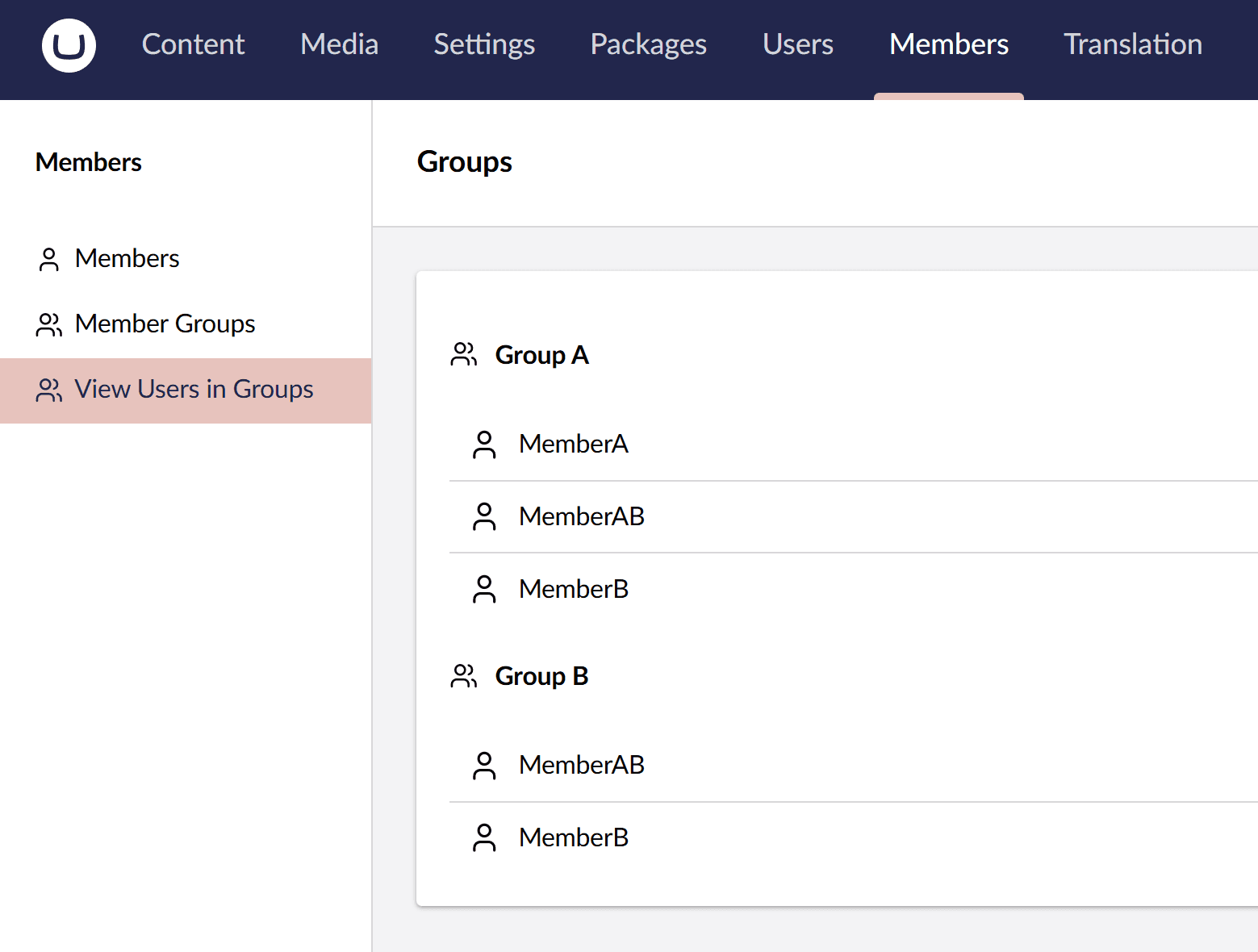
In this part, we’ll build a Workspace View that displays all Member Groups and their Members, and then register a custom menu item that links directly to it. This will show how to use Umbraco’s built-in repositories, conditions, and extension manifests to add actual functionality to your extension.
Let’s continue where we left off.
Create your Workspace View
Workspace views are powerful entry points inside the Backoffice. They let you build custom screens that interact with Umbraco data (or your own APIs). In this example, we’ll create a view that lists all Member Groups and the Members assigned to them.
1. Create a folder named workspaces in Umbraco.MyExtension/Client/src
2. Create a file group-members-workspace-view.ts in the workspacesfolder.
This view fetches Member Groups and Members, then renders them in a clean interface. For this we are going to use Umbraco’s repository APIs UmbMemberCollectionRepository and UmbMemberGroupCollectionRepository.
3. Now we need to register the workspace and the workspace view with Umbraco so it becomes available. Create a file manifests.ts in the workspaces folder.
Create your custom menu item
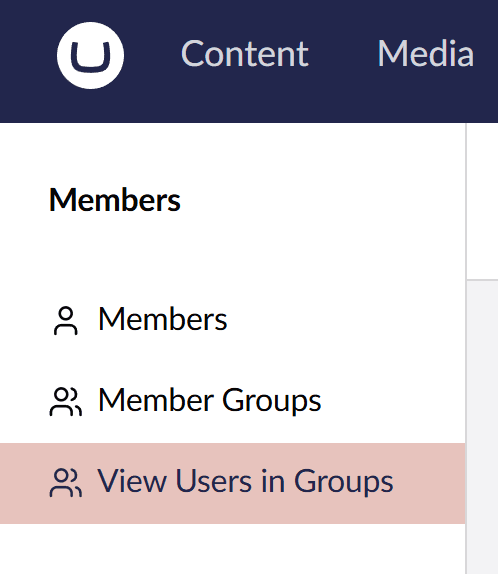
To link directly to the new workspace, we’ll create a menu item inside the Member Management section.
1. Create a folder named menuItems in Umbraco.MyExtension/Client/src
2. Create a file manifests.ts in the menuItems folder.
This adds a clickable entry in the Member Management menu that opens your workspace.
3. Edit the entrypoint.ts to point to the new manifest file.
Build and Run the Extension
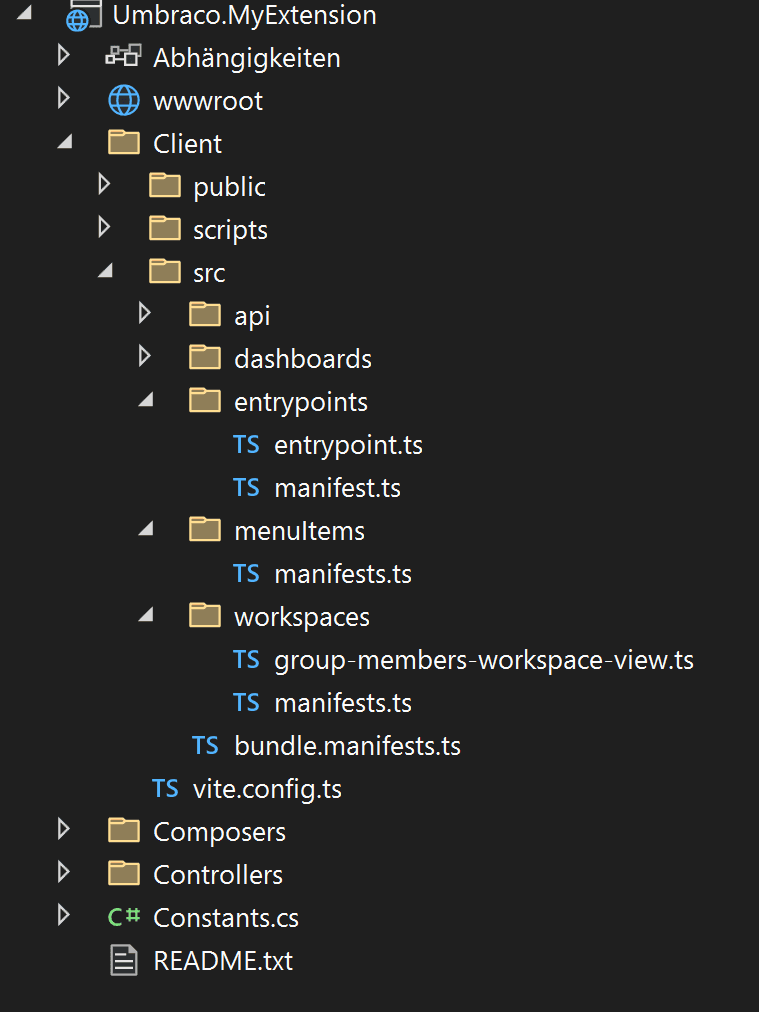
With everything in place, your project should look like this:
To build and run the extension, install the dependencies and start the Vite development server. To do this, run the following commands in the Client folder of your extension project:
The project also builds automatically when running the Umbraco project. To start the Vite development server in watch mode, run the following command:
This command compiles the TypeScript files and copies them over to the wwwroot output folder. Once complete, run the Umbraco project to view the extension in action.
Where to Go From Here
You now have a Backoffice extension that does something meaningful: it retrieves Umbraco data, renders a custom UI, and integrates into the navigation.
To learn more about what’s possible — from custom editors to full application workflows — check out the official Umbraco Backoffice Extension documentation.

.NET-Developer
Silvano Lenti
Silvano is our Umbraco expert for complex projects and prefers to contribute his technical know-how as part of a team. With his structured approach to challenges, he ensures smooth workflows in day-to-day project work. After hours, he swaps keyboard for cooking spoon – his specialty: homemade ramen.

Umbraco 17
Backoffice Extensions for Umbraco 17
How to set up the project, create a custom dashboard, and run your extension. Our developer Silvano runs you through the process.

How to make content editors happy
Umbraco Backoffice
As a web service provider, our goal is to design a backend in such a way that our customers' content editors can work independently and intuitively in the backend. We'll show you our 3 core principles for building backends in Umbraco.