
Umbraco 17
Backoffice Extensions
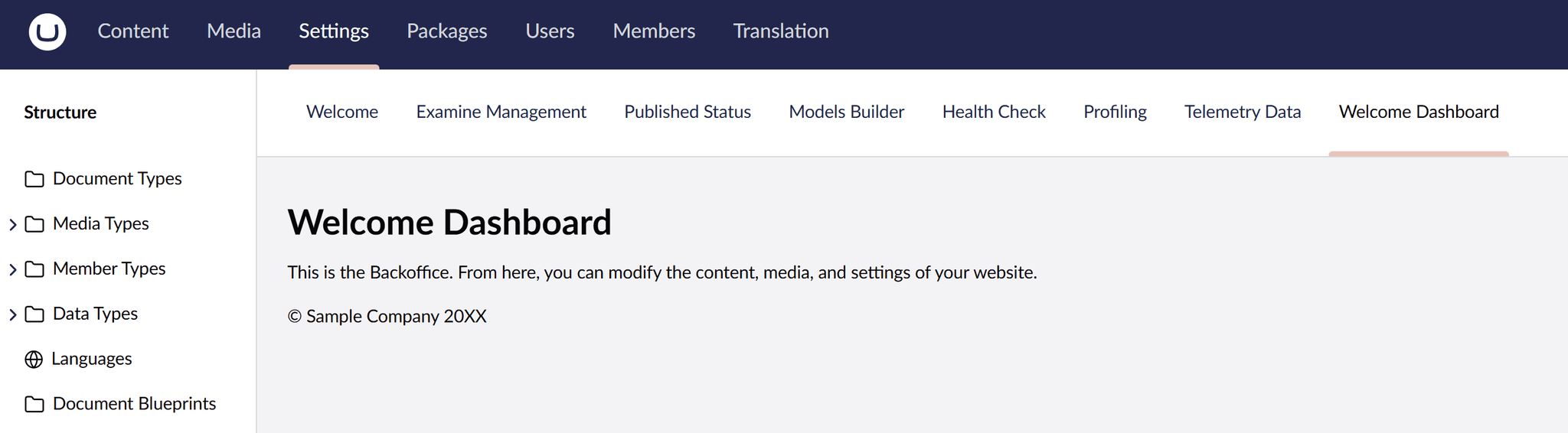
With Umbraco 17 and the new Backoffice, extending the CMS has never been more powerful - or more modern. Thanks to Web Components, TypeScript, and Vite, you can create fully customized dashboards, property editors, and tools that integrate seamlessly into Umbraco.
A major change in the new Backoffice is that AngularJS has been completely removed. Instead, Umbraco now relies on standard Web Components, making extensions more future-proof, framework-agnostic, and easier to maintain.
In this guide, I’ll walk step-by-step through creating your first Backoffice extension: a simple welcome dashboard. We’ll start by preparing your solution, adding a new extension project, and then building a custom UI component using Lit.
Let’s get started!
1. Install the Umbraco Extension Template
Before we can build anything, we need access to the official Umbraco extension template. This template gives you the file structure and configuration you need to work with Umbraco’s new extension system.
Run the following command in your terminal:
2. Add an Extension Project to Your Existing Solution
Now we’ll create a dedicated project for your Backoffice extension. This keeps your custom code clean and separate from your main Umbraco website
To create the extension project:
1. Right-click your Solution, Add, New Project.
2. Select Umbraco Extension (Umbraco HQ) as template.
3. Name it Umbraco.MyExtension
4. Click OK.
Next, we must link this extension to your main Umbraco project so it gets discovered and built correctly.
To add the reference:
1. Right-click the Dependencies node in the Umbraco project.
2. Select Add Reference.
3. Choose the Umbraco.MyExtension project.
4. Click OK.
3. Install Frontend Dependencies
The extension template uses modern tooling, specifically TypeScript, npm, and Vite. Before we can create web components, we must install the required dependencies.
Open a terminal inside your extension’s Client folder and run:
Once the installation finishes, you’re ready to start building your custom dashboard.
4. Create your first Dashboard
Dashboards are one of the simplest types of Backoffice extensions, making them a great starting point. Let’s create a folder for dashboards and add a new component.
1. Create a folder named dashboards in Umbraco.MyExtension/Client/src
2. Create a file welcome-dashboard.ts in the dashboards folder.
This file will define a custom web component using Lit. This component will render a simple greeting message directly inside the Umbraco Backoffice.
3. To make Umbraco aware of our new dashboard, we create a manifest file that describes it. Create a file manifests.ts. in the dashboards folder.
This tells Umbraco: “Whenever the Settings section is opened, load and show this dashboard.”
4. The extension project includes an entry point file that acts as the startup class for your custom code. We must import our manifest and register it when the extension loads.
Edit the entrypoint.ts to point to the new manifest file.
5. Build and Run the Extension
With everything in place, your project should look like this:
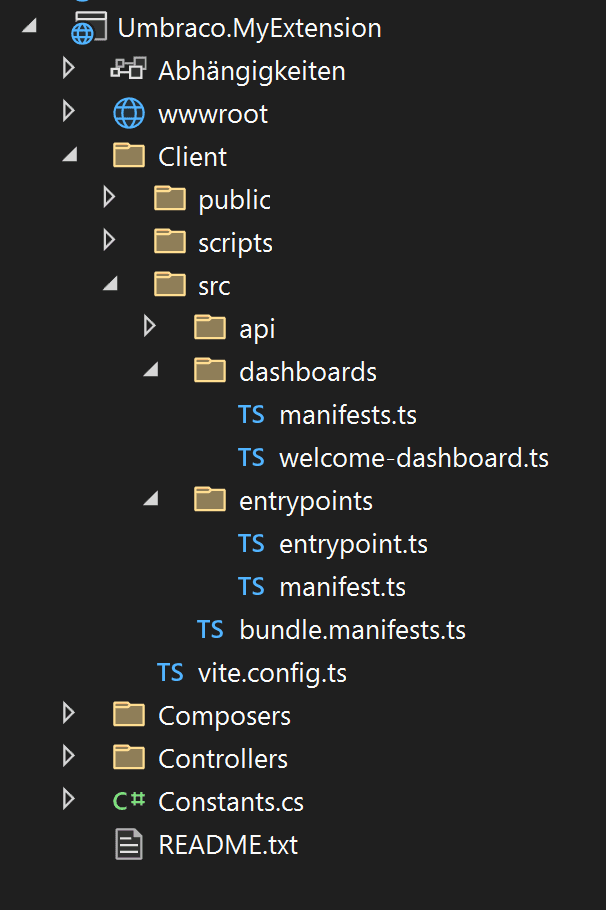
Now it’s time to compile the frontend and run the website.
From the Client folder of your extension project:
The project also builds automatically when running the Umbraco project. To start the Vite development server in watch mode, run the following command:
This command compiles the TypeScript files and copies them over to the wwwroot output folder. Once complete, run the Umbraco project to view the extension in action.
Finally, run your Umbraco website. When you navigate to the Settings section in the Backoffice, your new “Welcome Dashboard” should appear.
You're Ready for More
You’ve now built your first Umbraco 17 Backoffice extension — complete with custom web components, manifests, and automatic Vite builds.
If you want to explore more advanced concepts, workflows, and extension types, make sure to check out the official Umbraco Backoffice Extension documentation.

.NET-Developer
Silvano Lenti
Silvano is our Umbraco expert for complex projects and prefers to contribute his technical know-how as part of a team. With his structured approach to challenges, he ensures smooth workflows in day-to-day project work. After hours, he swaps keyboard for cooking spoon – his specialty: homemade ramen.
Get in touch with the Umbraco Community
and join our Meetup Group
Find Group